Activity 1.2: Your First Window

Activity 1.2
Your First Window
Key Concepts
A Raylib program repeatedly draws a picture. Coordinates place each shape, and color makes the result visible.
What You Are Building
Two Templates, Not One
Console
Runs top to bottom, then ends.
Game
Opens a window and repeats until it closes.
The Game Template Has Three Regions
using Raylib_cs;
int screenWidth = 800;int screenHeight = 600;
Raylib.InitWindow(screenWidth, screenHeight, "Hello, Raylib!");Raylib.SetTargetFPS(60);
while (!Raylib.WindowShouldClose()){ Raylib.BeginDrawing(); Raylib.ClearBackground(Color.Black); Raylib.DrawText("Hello, World!", 320, 285, 24, Color.SkyBlue); Raylib.EndDrawing();}
Raylib.CloseWindow();The Game Template Has Three Regions
using Raylib_cs;
int screenWidth = 800;int screenHeight = 600;
Raylib.InitWindow(screenWidth, screenHeight, "Hello, Raylib!");Raylib.SetTargetFPS(60);
while (!Raylib.WindowShouldClose()){ Raylib.BeginDrawing(); Raylib.ClearBackground(Color.Black); Raylib.DrawText("Hello, World!", 320, 285, 24, Color.SkyBlue); Raylib.EndDrawing();}
Raylib.CloseWindow();The Game Template Has Three Regions
using Raylib_cs;
int screenWidth = 800;int screenHeight = 600;
Raylib.InitWindow(screenWidth, screenHeight, "Hello, Raylib!");Raylib.SetTargetFPS(60);
while (!Raylib.WindowShouldClose()){ Raylib.BeginDrawing(); Raylib.ClearBackground(Color.Black); Raylib.DrawText("Hello, World!", 320, 285, 24, Color.SkyBlue); Raylib.EndDrawing();}
Raylib.CloseWindow();You Edit Inside the Repeated Region
The while line makes the drawing region repeat. You will learn exactly how it works later.
Today, keep the region intact and replace only the drawing instructions inside it.
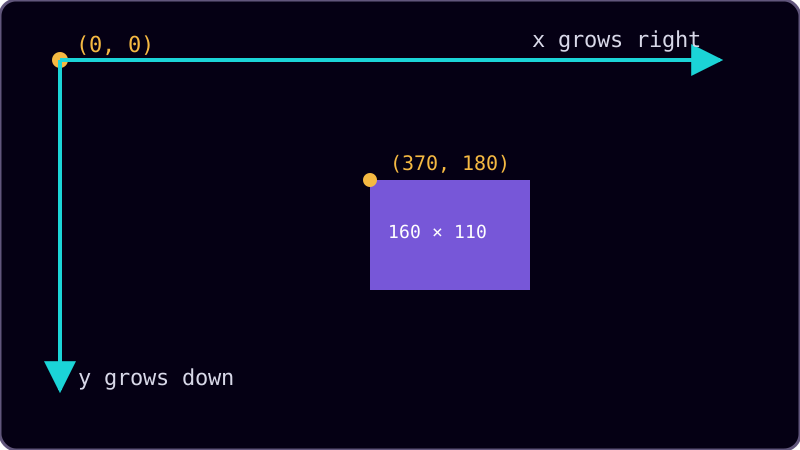
Where Is (0, 0)?
Make a prediction.
Where Is (0, 0)?
Bigger y Means Lower
Screen coordinates measure distance from the top-left corner. Increasing x moves right. Increasing y moves down.
Drawing a Rectangle
Raylib.DrawRectangle(350, 130, 100, 340, Color.Gray);- 350 — x of the left edge
- 130 — y of the top edge
- 100 — width
- 340 — height
Color.Gray— color
A Circle Is Measured Differently
Raylib.DrawCircle(400, 190, 35, Color.Red);- 400 — x of the center
- 190 — y of the center
- 35 — radius
Color.Red— color
Raylib Has Named Colors
Color.Red, Color.Yellow, and Color.Green are ready to use.
A custom color uses red, green, blue, and opacity values from 0 to 255.
Raylib.DrawCircle(400, 190, 35, new Color(230, 50, 50, 255));Today's Objectives
- Copy and run the Raylib game template.
- Identify setup, repeated drawing, and cleanup.
- Place rectangles and circles with coordinates.
- Use named and custom colors.
Key Terms
- Coordinate
- A number that identifies a position along an axis.
- Origin
- The point (0, 0), located at the top left of a Raylib window.
- Pixel
- One small colored square in a digital image or display.
- Game loop
- The repeated part of a game program that updates and draws each frame.
'F' → Fullscreen
Build
Create a Raylib program named 1-02-signal.
Task 1: Open a Window
- Copy
template-game. - Rename the copy
1-02-signal. - Open its
Program.csand run it. - Confirm that the blue message appears.
- Press Escape to close the window.
using Raylib_cs;
int screenWidth = 800;int screenHeight = 600;
Raylib.InitWindow(screenWidth, screenHeight, "Hello, Raylib!");Raylib.SetTargetFPS(60);
while (!Raylib.WindowShouldClose()){ Raylib.BeginDrawing(); Raylib.ClearBackground(Color.Black); Raylib.DrawText("Hello, World!", 320, 285, 24, Color.SkyBlue); Raylib.EndDrawing();}
Raylib.CloseWindow();Task 2: One Rectangle
- Change the window title to
Traffic Signal. - Delete the
Raylib.DrawTextline. - Add the rectangle drawing line after the background is cleared.
- Run the program.
- Change one number at a time. Record what 350, 130, 100, and 340 control, then restore the number.
using Raylib_cs;
int screenWidth = 800;int screenHeight = 600;
Raylib.InitWindow(screenWidth, screenHeight, "Traffic Signal");Raylib.SetTargetFPS(60);
while (!Raylib.WindowShouldClose()){ Raylib.BeginDrawing(); Raylib.ClearBackground(Color.Black);
Raylib.DrawRectangle(350, 130, 100, 340, Color.Gray); Raylib.EndDrawing();}
Raylib.CloseWindow();Task 3: Three Lights
- Add three circle instructions under the rectangle.
- Run after adding each circle.
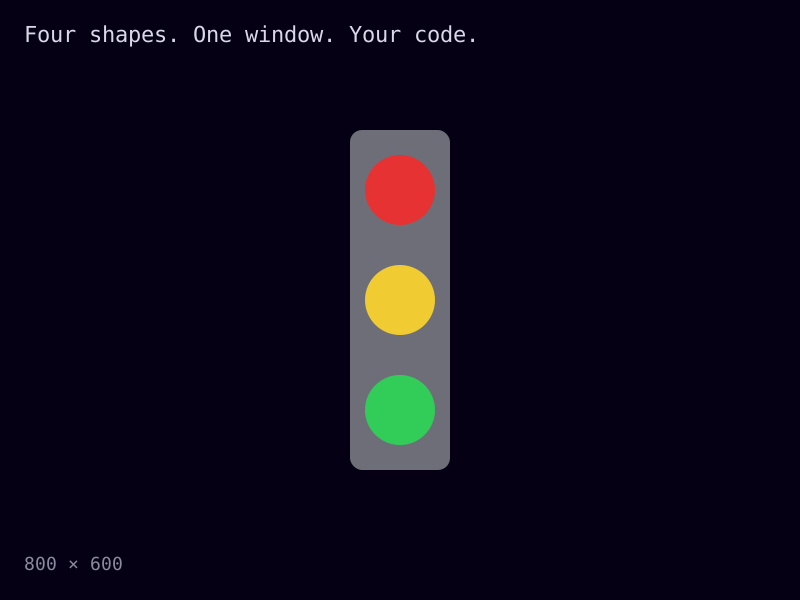
- Confirm that red is at the top, yellow is in the middle, and green is at the bottom.
- Explain why changing only each circle's y coordinate keeps them in one vertical column.
using Raylib_cs;
int screenWidth = 800;int screenHeight = 600;
Raylib.InitWindow(screenWidth, screenHeight, "Traffic Signal");Raylib.SetTargetFPS(60);
while (!Raylib.WindowShouldClose()){ Raylib.BeginDrawing(); Raylib.ClearBackground(Color.Black);
Raylib.DrawRectangle(350, 130, 100, 340, Color.Gray); Raylib.DrawCircle(400, 190, 35, Color.Red); Raylib.DrawCircle(400, 300, 35, Color.Yellow); Raylib.DrawCircle(400, 410, 35, Color.Green);
Raylib.EndDrawing();}
Raylib.CloseWindow();Challenge (Optional): Make the Colors Yours
- Replace one named color with a
new Color(red, green, blue, opacity)value. - Keep every number between 0 and 255.
- Change one channel at a time and observe what it controls.
Raylib.DrawCircle(400, 190, 35, new Color(230, 50, 50, 255));Challenge (Optional): Make a Scene
Make a copy named 1-02-scene. Draw a recognizable picture with at least six shapes and three colors. Use only drawing calls already shown on this page.
Checkpoint
Your program should produce this picture:
- The window is 800 by 600 pixels.
- The signal contains one rectangle and three circles.
- The window remains open until Escape is pressed or it is closed.
- The terminal contains no error.
Reflection
Answer the following questions before submitting your work.
- Why does increasing a shape's y coordinate move it down instead of up in a Raylib window?
- A rectangle is positioned by its top-left corner, but a circle is positioned by its center. How would you place a circle at the center of a rectangle?
- Which part of the template repeats, and why must drawing instructions stay inside that part?
Submit
Submit your completed activity sheet. Keep 1-02-signal in your workspace.