Activity 1.18: Raylib Lab 4 — The Loop You Didn't Write

What You're Building
One circle, crossing the window and coming back around. These are three moments from the same running program — there is no way to photograph the part that matters.

Just entered
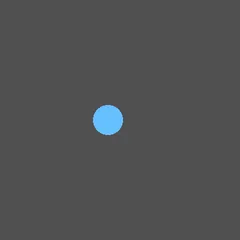
A second later

About to wrap
Nothing on this page is new except one idea. You already know how to draw a circle, how to change a variable, and how to write a loop. What you have not done is notice that Lab 1 gave you a loop and you have been copying it ever since.
'F' → Fullscreen
Build
Everything today goes in a new program named 1-18-catch. Nothing carries over from Lab 3.
How to read the code blocks. Each task's code block shows your whole program, from line 1, as it should look when that task is finished.
The green lines marked with a + are the ones you add or change for that task — everything else is already in your file. Do not type the + sign.
This lab needs the workspace, not Juicemind — same as Labs 1 through 3. Close the window to end the program. Escape works too.
Task 1: It Falls, and Falls Again
- Write the code below and run it. A ball drops down the window, and every time it leaves the bottom it starts again at the top, somewhere new.
- Change
speedfrom 3 to 10, run it, and write down the difference. Then put it back. - Work out why the check is
screenHeight + radiusand not justscreenHeight. Try it with plainscreenHeightand watch the bottom of the window. - Find the start, condition, and change from Activity 1.17. The game loop has all three, and so does the ball.
#:package Raylib-cs@8.0.0
using Raylib_cs;
int screenWidth = 400;int screenHeight = 400;
int ballX = 200;int ballY = 0;int radius = 15;int speed = 3;
Raylib.InitWindow(screenWidth, screenHeight, "Catch");Raylib.SetTargetFPS(60);
while (!Raylib.WindowShouldClose()){ ballY = ballY + speed;
if (ballY > screenHeight + radius) { ballY = 0 - radius; ballX = Random.Shared.Next(radius, screenWidth - radius); }
Raylib.BeginDrawing(); Raylib.ClearBackground(Color.DarkGray);
Raylib.DrawCircle(ballX, ballY, radius, Color.SkyBlue);
Raylib.EndDrawing();}
Raylib.CloseWindow();Task 2: The Paddle
- Add a paddle at the bottom and move it with the arrow keys.
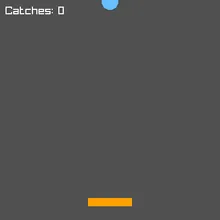
IsKeyDownis new, and it is a close cousin of Lab 3'sIsKeyPressed. Pressed is true for one frame when the key goes down. Down is true on every frame the key is held. Swap one for the other and feel the difference, then put it back.- The paddle does not catch anything yet. That is Task 3.
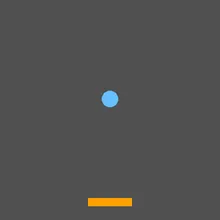
The ball falls, the paddle waits
#:package Raylib-cs@8.0.0
using Raylib_cs;
int screenWidth = 400;int screenHeight = 400;
int ballX = 200;int ballY = 0;int radius = 15;int speed = 3;
int paddleX = 160;int paddleY = 360;int paddleWidth = 80;int paddleHeight = 15;
Raylib.InitWindow(screenWidth, screenHeight, "Catch");Raylib.SetTargetFPS(60);
while (!Raylib.WindowShouldClose()){ ballY = ballY + speed;
if (ballY > screenHeight + radius) { ballY = 0 - radius; ballX = Random.Shared.Next(radius, screenWidth - radius); }
if (Raylib.IsKeyDown(KeyboardKey.Left)) { paddleX = paddleX - 6; }
if (Raylib.IsKeyDown(KeyboardKey.Right)) { paddleX = paddleX + 6; }
Raylib.BeginDrawing(); Raylib.ClearBackground(Color.DarkGray);
Raylib.DrawCircle(ballX, ballY, radius, Color.SkyBlue); Raylib.DrawRectangle(paddleX, paddleY, paddleWidth, paddleHeight, Color.Orange);
Raylib.EndDrawing();}
Raylib.CloseWindow();Task 3: Make It Catch
- Add the score and the catch. A new
DrawTextline puts the score in the corner. - The catch is one
ifwith three conditions joined by&&— the ball is low enough, it is right of the paddle's left edge, and it is left of the paddle's right edge. Activity 1.15. Read the condition out loud and match each part to one of those three. - Every catch adds one to
speed, so the game gets harder as you get better. Play it and write down your best score. - Now change both
&&s to||and run it. Watch the score. Say the condition out loud again with “or” in it, and explain what you saw. Then put it back.
#:package Raylib-cs@8.0.0
using Raylib_cs;
int screenWidth = 400;int screenHeight = 400;
int ballX = 200;int ballY = 0;int radius = 15;int speed = 3;
int paddleX = 160;int paddleY = 360;int paddleWidth = 80;int paddleHeight = 15;
int catches = 0;
Raylib.InitWindow(screenWidth, screenHeight, "Catch");Raylib.SetTargetFPS(60);
while (!Raylib.WindowShouldClose()){ ballY = ballY + speed;
if (ballY > screenHeight + radius) { ballY = 0 - radius; ballX = Random.Shared.Next(radius, screenWidth - radius); }
if (Raylib.IsKeyDown(KeyboardKey.Left)) { paddleX = paddleX - 6; }
if (Raylib.IsKeyDown(KeyboardKey.Right)) { paddleX = paddleX + 6; }
if (ballY + radius >= paddleY && ballX >= paddleX && ballX <= paddleX + paddleWidth) { catches = catches + 1; speed = speed + 1; ballY = 0 - radius; ballX = Random.Shared.Next(radius, screenWidth - radius); }
Raylib.BeginDrawing(); Raylib.ClearBackground(Color.DarkGray);
Raylib.DrawCircle(ballX, ballY, radius, Color.SkyBlue); Raylib.DrawRectangle(paddleX, paddleY, paddleWidth, paddleHeight, Color.Orange); Raylib.DrawText($"Catches: {catches}", 10, 10, 20, Color.White);
Raylib.EndDrawing();}
Raylib.CloseWindow();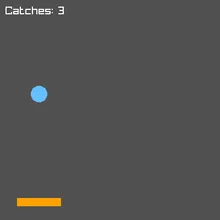
The finished game, three catches in
Task 4: Break It on Purpose
Two changes, one at a time. Screenshot or describe what you see each time, and put it back before the next.
- Delete the
Raylib.ClearBackgroundline and run it. Watch the score, too. - Put it back. Now move the
ballY = ballY + speed;line so it sits above thewhileline instead of inside the loop, and run it.
These two are opposites and that is the point. One draws every frame and never clears. The other changes the number once and then draws the same picture forever. Say which is which, and what each one tells you about where the animation actually comes from.
Challenge (Optional): Three Strikes
- Add a
missescounter. A miss is a ball that leaves the bottom of the window — you already have anifthat notices exactly that. - Show the misses on screen next to the catches.
- After three misses, the game is over: stop the ball and draw
GAME OVERin the middle of the window. Stopping the ball can be as simple as settingspeedto 0. - Write a comment saying where you put the miss counter, and why that spot counts misses and nothing else.
Checkpoint
Your two broken versions from Task 4 should look like this.
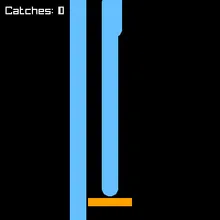
Task 4, change 1 — no clear
Task 4, change 2 — change outside the loop
Look at the background on the left one. It is black, not dark gray — because ClearBackground is the only thing that ever painted it gray, and you deleted it. Every frame added a ball to a window nobody ever wiped — and the score was drawn over its old self, which is why it looks smudged.
- The ball falls, comes back at the top somewhere new, and you can say why the check uses
screenHeight + radius - The arrow keys move the paddle, and catches count up and speed the game up
- You can say what
!Raylib.WindowShouldClose()means in plain English - Both Task 4 results are recorded, with what each one says about where the animation comes from
Reflection
Answer the following questions before submitting your work.
- You copied the game loop in Labs 1, 2, and 3 without being able to read it. Now that you can, explain in your own words what
while (!Raylib.WindowShouldClose())does and when it stops. - Task 4's second change moved one line outside the loop and the animation stopped completely. Explain what that tells you about which part of the program actually makes things move.
- Nothing on the screen really moves — the window is redrawn from scratch sixty times a second. Describe what your eye is doing, and why deleting the wipe in Task 4 proves the picture was never being moved.
Submit
Submit four things to the dropbox:
- Your 1-18-catch program file, and your best score.
- What changing the speed to 10 did, and why the wrap uses
screenHeight + radius. - Your two Task 4 results, with which is which and what each one shows.
- Your three reflection answers.