Library Exploration: Raylib — Motion
Optional — For Fun

What This Is
Raylib is a library for making games. Windows, shapes, animation, keyboard and mouse input — the things a terminal cannot do.
Raylib itself is written in C. What you are installing is pyray, its Python API — the same library, with the names spelled the Python way. That is why you install something called raylib but import something called pyray.
Here is what makes this different from Turtle. Turtle draws a picture and stops. Raylib erases and redraws the entire window sixty times a second. Every game you have ever played works this way, and once that idea lands, animation stops being mysterious.
This uses no Python you have not already been taught. Variables, arithmetic, while loops from Activity 1.13, if statements, for loops from Activity 1.16, and f-strings. That is the entire list.
Installing It
Raylib does not come with Python — unlike turtle or math, you have to install it:
pip install raylibNote the mismatch, because it catches everyone: the thing you install is called raylib, and the thing you import is called pyray.
If that fails with a permissions error, the school machines may not let you install packages. Come and tell me rather than fighting it — there is a way around it, and it is not your problem to solve.
Work Through These
1. A window
Create a file named le-raylib-1 and run this:
from pyray import *
set_trace_log_level(LOG_NONE)init_window(640, 360, "My First Window")set_target_fps(60)
while not window_should_close():    begin_drawing()    clear_background(BLACK)    draw_text("Hello, Raylib", 175, 160, 32, LIME)    end_drawing()
close_window()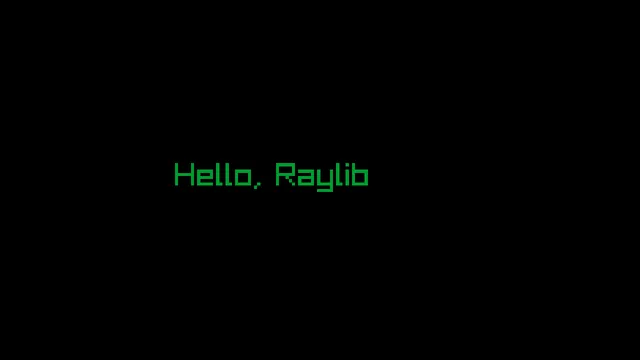
That is more ceremony than Turtle needed, so here is what each piece is for. You will write these same lines every single time, and after the third program you will stop thinking about them.
set_trace_log_level(LOG_NONE)— silences about twenty lines of startup chatter. Leave it off once and you will see why it is there.init_window(640, 360, "My First Window")— width, height, and the title bar text.set_target_fps(60)— aim for sixty frames per second.while not window_should_close():— keep going until the user closes the window or presses Esc. It is an ordinarywhileloop with an ordinary condition.begin_drawing()andend_drawing()— everything you want on screen goes between these two.close_window()— cleans up after the loop ends.
2. Shapes and text
from pyray import *
set_trace_log_level(LOG_NONE)init_window(640, 360, "Shapes")set_target_fps(60)
while not window_should_close():    begin_drawing()    clear_background(BLACK)
    draw_circle(150, 200, 60, SKYBLUE)    draw_rectangle(260, 140, 120, 120, GOLD)    draw_line(430, 140, 560, 260, LIME)    draw_text("three shapes", 20, 20, 20, RAYWHITE)
    end_drawing()
close_window()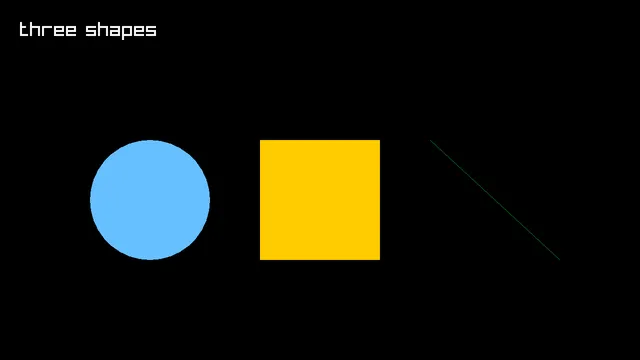
The coordinate system is the thing to get straight. (0, 0) is the top left corner, and y grows downward. Larger y means further down the screen, which is the opposite of the graphs in your math class. Expect to get this backwards once.
The arguments are positions and sizes in pixels: draw_circle(x, y, radius, color), draw_rectangle(x, y, width, height, color), draw_line(x1, y1, x2, y2, color), and draw_text(text, x, y, size, color). For rectangles, the x and y are the top left corner, not the center.
Colors are ready-made names in capitals. Try RED, ORANGE, YELLOW, GREEN, LIME, SKYBLUE, DARKBLUE, PURPLE, VIOLET, PINK, BEIGE, BROWN, GOLD, MAROON, WHITE, RAYWHITE, DARKGRAY, and BLACK.
3. A loop full of shapes
Same idea as drawing a square with Turtle, except now the loop variable is doing real work — it decides where each bar goes and how tall it is.
from pyray import *
set_trace_log_level(LOG_NONE)init_window(640, 360, "A Loop of Shapes")set_target_fps(60)
while not window_should_close():    begin_drawing()    clear_background(BLACK)
    for i in range(12):        draw_rectangle(40 + i * 48, 320 - i * 22, 34, i * 22 + 20, SKYBLUE)
    draw_text("drawn by a for loop", 20, 20, 20, RAYWHITE)
    end_drawing()
close_window()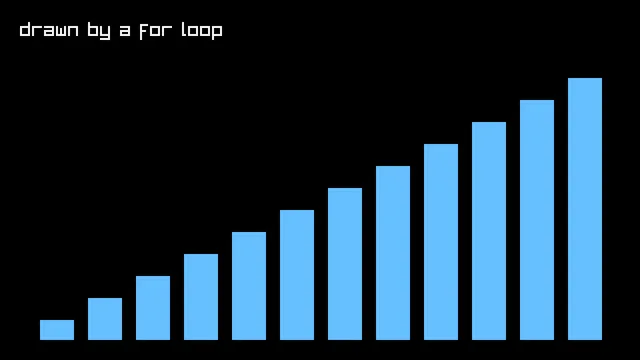
Twelve bars from four lines of code. Change the 12, the 48, and the 22 one at a time and watch which part of the picture each one controls.
4. The important part: it redraws sixty times a second
Read this bit slowly, because everything after it depends on it.
The window is not a picture you draw on. It is wiped clean and drawn again from scratch on every pass through the loop. Nothing you drew last frame survives.
So to make something move, you do not move it. You change a variable and draw it in the new spot. Sixty times a second, that reads as motion.
from pyray import *
set_trace_log_level(LOG_NONE)init_window(640, 360, "Bounce")set_target_fps(60)
x = 60y = 80speed_x = 4speed_y = 3
while not window_should_close():    x = x + speed_x    y = y + speed_y
    if x > 620 or x < 20:        speed_x = speed_x * -1    if y > 340 or y < 20:        speed_y = speed_y * -1
    begin_drawing()    clear_background(BLACK)    draw_circle(x, y, 20, GOLD)    draw_text(f"x = {x}   y = {y}", 20, 20, 20, LIME)    end_drawing()
close_window()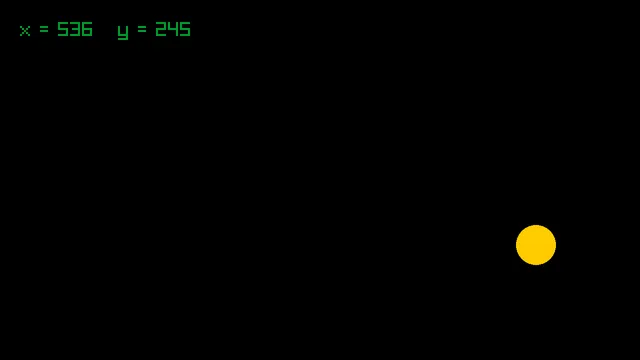
speed_x is how far the ball moves sideways each frame. Multiplying it by -1 reverses it — that is the whole trick behind bouncing, and it is Activity 1.5's variable reassignment doing a job.
Things worth trying. Set speed_y to 0 and the ball only moves sideways.
Then work out why the number is 620 and not 640. The window is 640 wide and the ball's radius is 20, so 620 is where the ball's edge meets the wall, not its center. Change the radius to 40 without changing the 620 and watch part of the ball disappear into the side.
Now set speed_x to 40. The ball moves so far each frame that it overshoots before the if can catch it — its center gets all the way to 660, which puts the whole ball outside the window for a frame. It always comes back, but the check happens after the move, and that is a bug pattern you will meet again.
5. Taking control
is_key_down() is True while a key is held. It is a plain function call, so it drops straight into an if statement.
from pyray import *
set_trace_log_level(LOG_NONE)init_window(640, 360, "Take Control")set_target_fps(60)
x = 320y = 180
while not window_should_close():    if is_key_down(KEY_RIGHT):        x = x + 5    if is_key_down(KEY_LEFT):        x = x - 5    if is_key_down(KEY_DOWN):        y = y + 5    if is_key_down(KEY_UP):        y = y - 5
    begin_drawing()    clear_background(BLACK)    draw_circle(x, y, 25, SKYBLUE)    draw_text("Use the arrow keys", 20, 20, 20, RAYWHITE)    end_drawing()
close_window()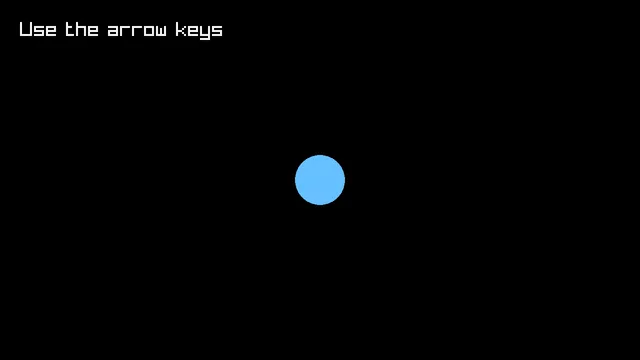
Four separate if statements, not an elif chain — and that is deliberate. With four independent ifs you can hold Right and Up together and move diagonally. Turn them into an elif chain and only one direction at a time works. Try it both ways.
Other keys follow the same pattern: KEY_W, KEY_A, KEY_S, KEY_D, KEY_SPACE, KEY_ENTER. There is also get_mouse_x() and get_mouse_y() if you would rather steer with the mouse.
When It Goes Wrong
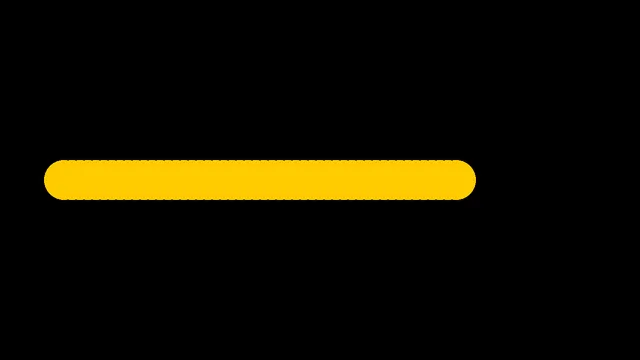
Everything smears into a solid streak. You left out clear_background(), so nothing is erasing the previous frame. Here is exactly what that looks like:
The window is black and nothing you drew appears. Check that end_drawing() is there. Without it the frame is never handed to the screen, and you get an empty window with no error message at all.
The window opens and immediately shuts. Something is wrong with your while condition, or your drawing code ended up after close_window() instead of inside the loop.
Do not put input() inside the loop. It stops the program dead waiting for the Enter key, and the window freezes. If you want to ask the user something, ask before init_window().
Then Make Something
Ideas, in rough order of difficulty:
- A traffic light that cycles between red, yellow, and green on a timer
- A bar chart of numbers you pick, drawn with a
forloop - Two balls bouncing at different speeds, in different colors
- A ball you steer with the arrow keys that cannot leave the window
- A ball that follows the mouse, but slowly — move it a few pixels toward
get_mouse_x()each frame instead of snapping to it - Something that changes color when you hold a key down
To submit: your .py file and a screenshot of it running.
Part 2 is where this gets good. Once you have lists, you can have a hundred things moving at once instead of one — and that is a game.