Session 02: CPUs and Motherboards

Session 02
CPUs and Motherboards
Agenda
 Introduce CPUs
- Introduce Motherboards
- Install a CPU
- Introduce CPU Coolers
- Install a CPU Cooler
The CPU
A CPU (Central Processing Unit) is the brain of the computer, responsible for executing instructions and processing data.
Processors are made up of billions of components called transistors, which act as tiny switches that help process and execute instructions.
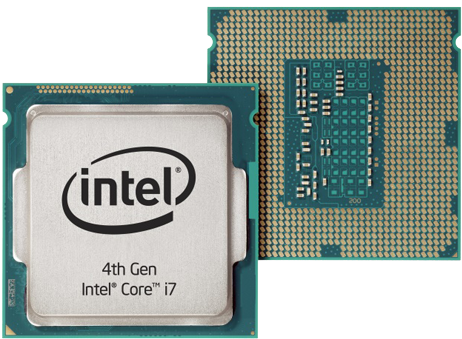
CPU Characteristics
- Clock Speed (measured in GHz)
- Number of Cores
- Generation (or version)
- Cache
Note: CPUs can execute billions of instructions per second!
Intel and AMD Brands
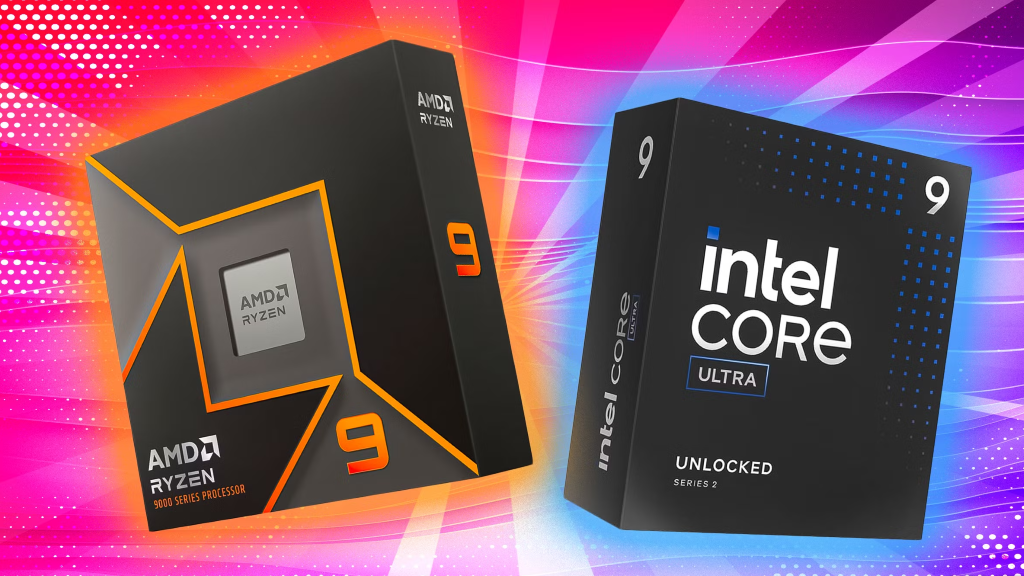
There are two major CPU brands to choose from: AMD and Intel.
- They are fierce rivals, but both make incredible processors.
- The Golden Rule: They are NOT interchangeable. An Intel CPU requires an Intel motherboard, and an AMD CPU requires an AMD motherboard.
PGA vs. LGA Sockets
How the CPU connects to the motherboard depends on the brand and generation:
- LGA (Land Grid Array): The delicate pins are on the motherboard socket. The bottom of the CPU is flat. (Used by all modern Intel and AMD AM5 CPUs).
- PGA (Pin Grid Array): The delicate pins are directly on the bottom of the CPU. (Used by older AMD AM4 CPUs).
🚨 NEVER touch the pins on a motherboard socket or a PGA CPU! 🚨
The Motherboard
A motherboard is the main circuit board of a computer, connecting all components like the CPU, RAM, and storage so they can work together.
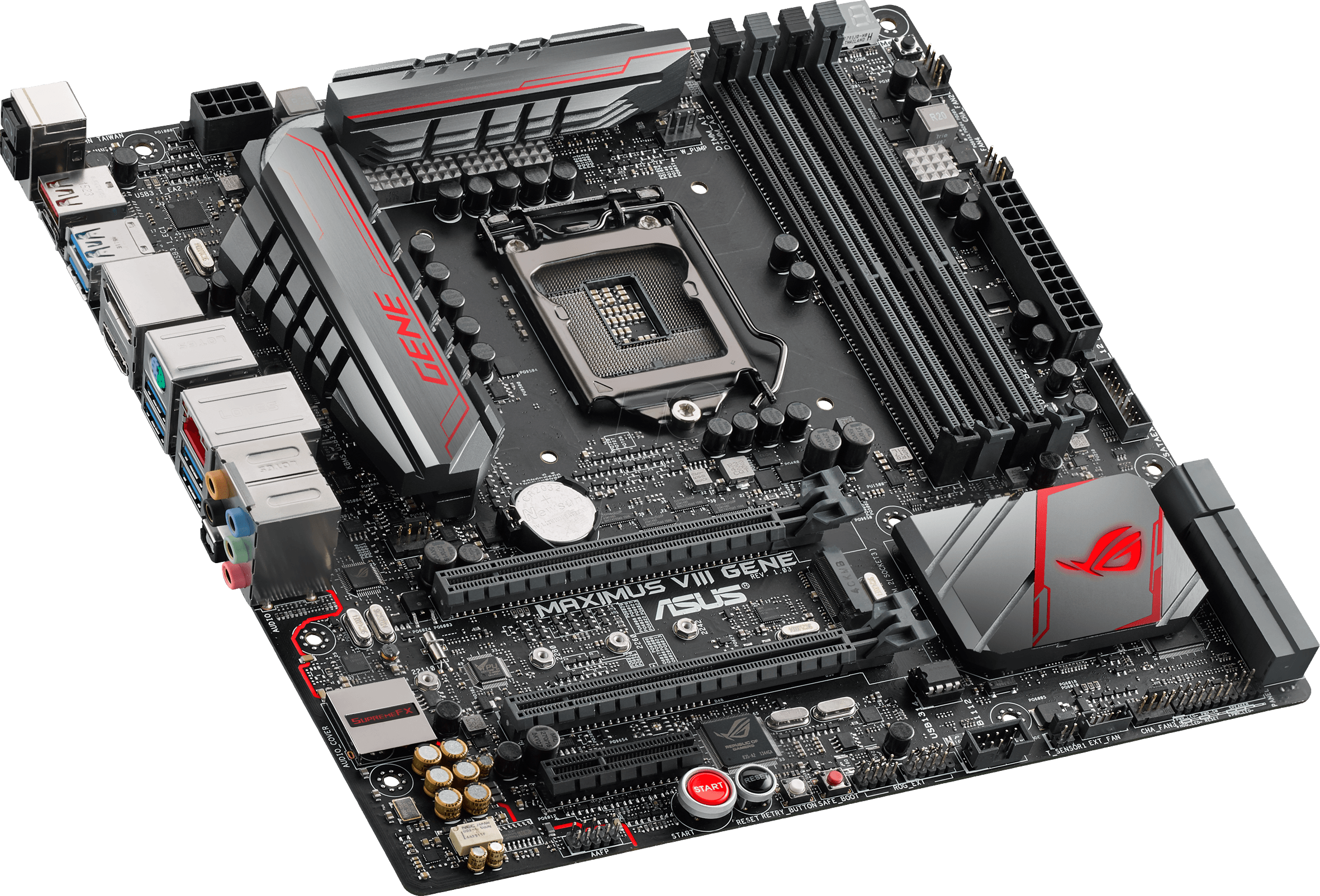
Motherboard Characteristics
- Chipset - Determines compatibility with processors, RAM, and storage devices.
- CPU Socket - The connector that houses the processor.
- RAM Slots - Provides space for memory modules.
- Expansion Slots - Includes PCIe slots for graphics cards, sound cards, and other upgrades.
- Power Connectors - Delivers power from the PSU to the board.
- Storage Connectors - Supports SSDs, HDDs, and M.2 drives.
- USB & Connectivity Ports
- Form Factor - Defines the size and shape.
Installing a CPU

This is one of the most delicate tasks of assembling a computer! Listen carefully to the installation instructions.
How to Install a CPU
- Open the socket
- Align the CPU to the correct position (look for the triangles)
- Gently seat the CPU into the socket
- Lock the CPU in the socket
Hands-On Task
Practice installing a CPU into an LGA socket and an older PGA socket.
CPU Cooling
CPUs run very hot!
Without a cooling fan, a CPU can overheat within seconds to minutes under heavy load.
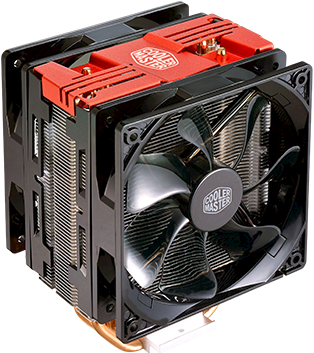
CPU Coolers (Air)
- Heatsinks: Draw heat away from the CPU.
- Fans: Push cool air through the heatsink to cool it down.
⬇️ Press down for Water Cooling info
Water Cooling
Uses a radiator, fluid, a pump, and a metal block to cool the CPU.
- Better cooling performance
- Requires maintenance
- Slightly more difficult assembly
Installing a CPU Cooler
- Apply fresh thermal paste in a small, pea-sized amount at the center of the CPU (Skip for GTE Camp Stations)
- Align the new fan and heatsink with the mounting holes on the motherboard
- Secure the heatsink by pressing down or screwing it in place, ensuring even pressure
- Connect the fan cable to the CPU fan header on the motherboard
Cooler Challenge!
Try installing a cooler other than the one at your station.
'F' → Fullscreen